Bye-Bye FAS? Citrix SSO with NetScaler and Entra ID
For years, getting true single sign-on into a Citrix desktop after an Entra ID sign-in meant the Federated Authentication Service (FAS). Entra proves who the user is, but it never gives Windows an Active Directory password, so without FAS the user signs in to Entra and then gets a Windows logon prompt on the VDA.
That has changed. Citrix’s Microsoft Entra single sign-on, available in Citrix DaaS since late 2025, is now generally available on-premises with Citrix Virtual Apps and Desktops 2607 LTSR. Users sign in once with Entra ID, MFA and Conditional Access, and land on their desktop with no FAS, no certificate authority and no second prompt.
This post draws heavily on Thomas Poppelgaard’s excellent write-up of a production rollout. Read it in full before you start; it has the step-by-step configuration.
Why move away from FAS
FAS works, and it’s still supported. But it brings a lot with it:
- More infrastructure: at least two FAS servers, an enterprise CA, certificate templates and a registration authority certificate
- A high-value target: anything that can issue logon certificates for every user needs protecting like core identity infrastructure
- More things to fail: if FAS, the CA or the registration certificate has a problem, new logons fail
- Harder troubleshooting: issues span Citrix, PKI and AD smart-card logon
- Ongoing work: certificate renewal, revocation and patching
How it works without FAS
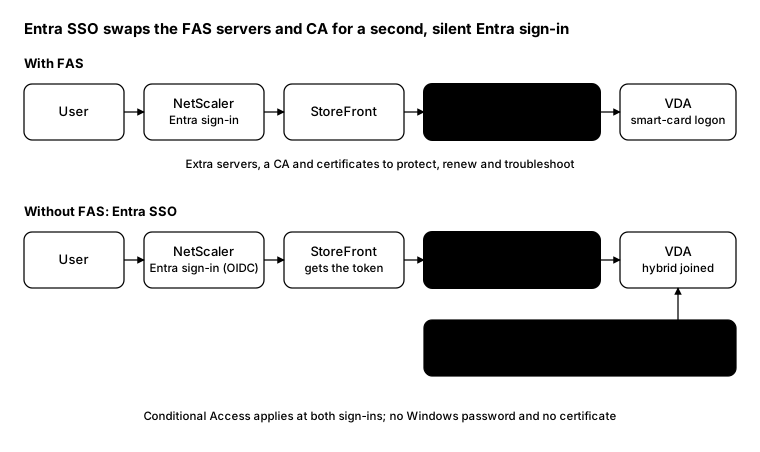
- Gateway sign-in. NetScaler Gateway signs the user in to Entra ID with OpenID Connect.
- Token hand-off. NetScaler passes the Entra access token to StoreFront, which uses it to identify the user and their groups.
- Silent session sign-in. When the user launches an app or desktop, Workspace app does a second, silent Entra sign-in using Microsoft’s Remote Desktop Services authentication protocol.
- VDA logon. The hybrid-joined VDA accepts the Entra logon through the Entra Kerberos object in Active Directory. No Windows password and no certificate.
Citrix still brokers and delivers the session; Entra and Conditional Access own the sign-in policy.
What you need
| Component | Requirement |
|---|---|
| Delivery Controllers | CVAD 2607 LTSR or later |
| StoreFront | 2607 LTSR or later, with the modern user interface |
| VDA | 2607 LTSR recommended; machines must be Entra hybrid joined |
| Session host OS | Windows 11 24H2 or Windows Server 2025, recent cumulative updates |
| NetScaler | A supported, patched build with OAuth (PKCE), rewrite and content switching |
| Active Directory | An Entra Kerberos server object |
| Entra ID | P1, for the dynamic device group of session hosts |
| Workspace app | 2607 LTSR or a current release; Citrix Web Extension for browser launches |
Entra-joined (rather than hybrid-joined) VDAs are only supported with Citrix DaaS.
The moving parts
In Entra ID: two app registrations (one for the Gateway sign-in, one for the session sign-in), consent for the Citrix-Workspace-Resource enterprise app, the Remote Desktop Services authentication protocol turned on, and a dynamic group of session hosts trusted for remote sign-in. Put session MFA in Conditional Access on Citrix-Workspace-Resource.
On NetScaler: an OAuth (OIDC) action against Entra, a rewrite policy that passes the access token to StoreFront, one session policy for Workspace app and browsers, and a content switching virtual server in front so one ticket redemption path goes straight to StoreFront.
On StoreFront: pass-through from NetScaler Gateway, Entra ID settings on the store, and Entra SSO enabled.
In CVAD: machine catalogs created as “Microsoft Entra hybrid joined” (you can’t change this later), Entra SSO enabled for the site, and delivery groups using the hybrid joined logon type.
On the VDAs: two settings matter. “Allow Custom SSPs and APs to be loaded into LSASS” must stay enabled, which the Intune security baseline turns off. “Always prompt for password upon connection” must be off.
Gotchas from the field
- Auto Client Reconnect is off with Entra SSO. Session Reliability still works.
- Locked desktops show the Windows lock screen, which only takes a password or smart card. For passwordless users, set sessions to disconnect on lock instead.
- Admins don’t get SSO by default. Domain Admins and other protected groups have to be explicitly allowed for Entra Kerberos.
- Assign apps to AD identities, not Entra-only identities.
- New session hosts can take time to join the dynamic device group. Until then, users see an “Allow remote desktop connection” prompt.
- A VDA stuck at “Initializing” usually means its computer object isn’t being synced by Entra Connect.
- Don’t force
prompt=loginon the NetScaler OAuth action. In Thomas’s rollout it broke background Gateway renewal and forced daily restarts. - Watch NetScaler builds. He hit known issues on recent 14.1 builds; check the current Citrix articles before you pick one, and remember the patching advice from my NetScaler CVE post.
FAS and Entra SSO can coexist
You don’t have to switch everything at once. Citrix says FAS and Entra SSO can run side by side, chosen per delivery group. Domain-joined-only VDAs still need FAS for prompt-free SSO, while hybrid-joined delivery groups move to Entra SSO. That makes a gradual migration possible.
From the field: are the VDAs ready?
Most problems come from the session hosts, not from NetScaler or StoreFront. This check reports each VDA’s join state, OS build and the two settings that quietly break Entra SSO. It works in Windows PowerShell 5.1 and PowerShell 7.
$vdas = Get-Content .\vdas.txt

Invoke-Command -ComputerName $vdas -ScriptBlock {
    $ds  = dsregcmd /status
    $os  = Get-ItemProperty 'HKLM:\SOFTWARE\Microsoft\Windows NT\CurrentVersion'
    $ssp = (Get-ItemProperty 'HKLM:\SOFTWARE\Policies\Microsoft\Windows\System' -ErrorAction SilentlyContinue).AllowCustomSSPsAPs
    $pwd = (Get-ItemProperty 'HKLM:\SOFTWARE\Policies\Microsoft\Windows NT\Terminal Services' -ErrorAction SilentlyContinue).fPromptForPassword

    [pscustomobject]@{
        EntraJoined       = ($ds -match 'AzureAdJoined\s*:\s*YES').Count -gt 0
        DomainJoined      = ($ds -match 'DomainJoined\s*:\s*YES').Count -gt 0
        Build             = "$($os.CurrentBuild).$($os.UBR)"
        CustomSSPsBlocked = $ssp -eq 0
        PromptForPassword = $pwd -eq 1
    }
} | Select-Object PSComputerName, EntraJoined, DomainJoined, Build, CustomSSPsBlocked, PromptForPassword |
    Format-Table -AutoSize
Every VDA should show True for both join columns and False for the last two. A True in CustomSSPsBlocked
usually means a security baseline has switched off the setting Entra SSO depends on.
Bottom line
Entra SSO without FAS removes a whole tier of certificate infrastructure and gives users one modern sign-in with MFA and Conditional Access. It needs 2607 LTSR, hybrid-joined VDAs and careful NetScaler work, but for most Entra-first organisations it’s the direction to head in.