VDI Assessment Map: What to Check in a Citrix or AVD Environment
When I’m asked to look at someone’s Citrix or Azure Virtual Desktop environment, the question is usually vague: “it’s slow”, “is it secure?”, or “should we move to the cloud?” A good assessment answers all three, and it does that by working through the environment layer by layer instead of jumping straight to the loudest complaint.
This is the map I use. It works for Citrix Virtual Apps and Desktops, Citrix DaaS and AVD, because the layers are the same even when the products aren’t.
The map
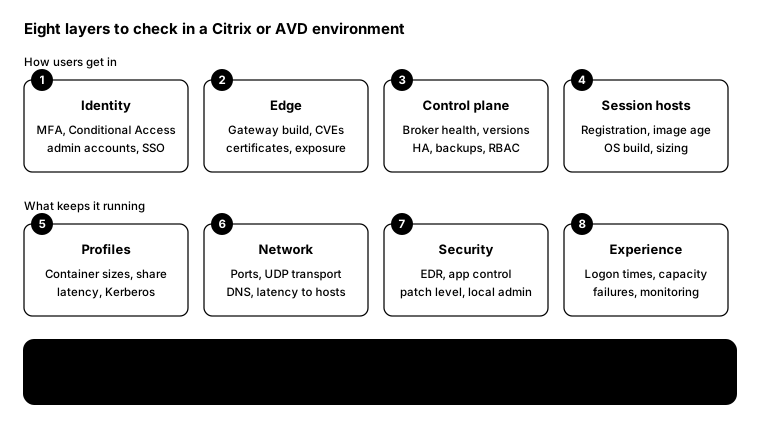
Layer by layer
- Identity. Is MFA enforced for every user and every admin? Are Conditional Access policies in place, and do admins use separate accounts? Is SSO working, or are users signing in twice?
- Edge. Which gateway build is running, and is it exposed to any known exploited CVEs? When do the certificates expire? Is anything other than the gateway reachable from the internet? For NetScaler, see my NetScaler CVE post.
- Control plane. Are the Delivery Controllers, StoreFront or Connection Servers healthy, supported and redundant? Is the site database backed up? Who has full admin rights, and should they?
- Session hosts. How many machines are unregistered or stuck in maintenance mode? How old is the golden image, and when was it last patched? Are hosts sized for the sessions they’re carrying?
- Profiles. How big are the profile containers, and how fast are they growing? What’s the latency to the profile share? Is only one profile solution switched on? See Citrix Profile Management vs FSLogix.
- Network. Is UDP transport (EDT, RDP Shortpath or Blast UDP) working, or is everything falling back to TCP? Is DNS consistent? What’s the latency between users, hosts and the data they need?
- Security. Is EDR installed and healthy on every host? Is application control enforcing or only auditing? Who’s a local admin on the session hosts? See the EUC security map.
- Experience. What are logon times really like, and which phase is slow? How close are you to capacity at peak? Which launches fail, and is anyone watching? This is where tools like uberAgent earn their keep.
Turning checks into findings
An assessment is only useful if it ends in decisions. I rate every finding and pair it with a fix:
| Rating | What it means | Example |
|---|---|---|
| Critical | Exploitable now, or an outage waiting to happen | Gateway on a build with known exploited CVEs |
| High | Serious risk or user impact; fix this quarter | No MFA for administrators |
| Medium | Weakens the environment over time | Golden image not patched for 90 days |
| Low | Good practice, not urgent | Inconsistent naming of delivery groups |
Keep the checks read-only: an assessment should never change the environment it’s looking at. Run them with a read-only admin account wherever the platform allows.
From the field: two starting points
These won’t cover every layer, but they answer the first question in layer 4 on each platform: how healthy are the session hosts? I keep platforms in separate scripts, because the on-premises Citrix SDK snap-ins run in Windows PowerShell 5.1, while the Azure modules are happiest in PowerShell 7.
Citrix (Windows PowerShell 5.1, Broker SDK):
Add-PSSnapin Citrix.Broker.Admin.V2

Get-BrokerDesktopGroup -AdminAddress 'ddc01.contoso.local' |
    Select-Object Name, Enabled, InMaintenanceMode, SessionSupport,
                  TotalDesktops, DesktopsAvailable, DesktopsUnregistered |
    Sort-Object DesktopsUnregistered -Descending |
    Format-Table -AutoSize
For Citrix DaaS, use the Remote PowerShell SDK and run Get-XDAuthentication first instead of -AdminAddress.
Azure Virtual Desktop (PowerShell 7, Az.DesktopVirtualization):
Connect-AzAccount
$rg = 'rg-avd-prod'

foreach ($pool in Get-AzWvdHostPool -ResourceGroupName $rg) {
    Get-AzWvdSessionHost -ResourceGroupName $rg -HostPoolName $pool.Name |
        Select-Object @{ n = 'HostPool'; e = { $pool.Name } },
                      @{ n = 'SessionHost'; e = { ($_.Name -split '/')[1] } },
                      Status, AllowNewSession, Session, AgentVersion, UpdateState, LastHeartBeat
} | Sort-Object Status | Format-Table -AutoSize
Anything not Available, any host not allowing new sessions, and any old heartbeat goes straight into the findings.
Bottom line
Work through all eight layers, even when the complaint is about only one. The slow logon is often a profile or network finding, and the “secure” environment often has a gateway two builds behind. A layer-by-layer assessment finds both, and gives you a ranked list of what to fix first.